> ## Documentation Index
> Fetch the complete documentation index at: https://docs.getcore.me/llms.txt
> Use this file to discover all available pages before exploring further.
# Codex CLI
> Connect your Codex CLI to CORE's memory system
### Prerequisites
* [Codex CLI](https://codex.so) installed
* CORE account - [Sign up at app.getcore.me](https://app.getcore.me)
### Step 1: Configure CORE MCP Server
Create or open your Codex configuration file at `~/.codex/config.toml`:
```bash theme={null}
# Create config directory if needed
mkdir -p ~/.codex
# Open config file in your editor
code ~/.codex/config.toml -r
```
### Step 2: Add CORE MCP Configuration
**Option 1: URL-based Configuration (Recommended)**
Try this simpler configuration first. Add the following to your `config.toml` file:
```toml theme={null}
[features]
rmcp_client=true
[mcp_servers.memory]
url = "https://app.getcore.me/api/v1/mcp?source=codex"
```
Then run the login command:
```bash theme={null}
codex mcp memory login
```
This will authenticate your Codex CLI with CORE's memory system.
**Option 2: API Key Configuration (If Option 1 doesn't work)**
If the URL-based configuration doesn't work, use this API key-based configuration:
```toml theme={null}
[features]
rmcp_client=true
[mcp_servers.memory]
url = "https://app.getcore.me/api/v1/mcp?source=codex"
http_headers = { "Authorization" = "Bearer CORE_API_KEY" }
```
To get your API key:
1. Log into your CORE dashboard at [app.getcore.me](https://app.getcore.me)
2. Navigate to **Settings** (bottom left)
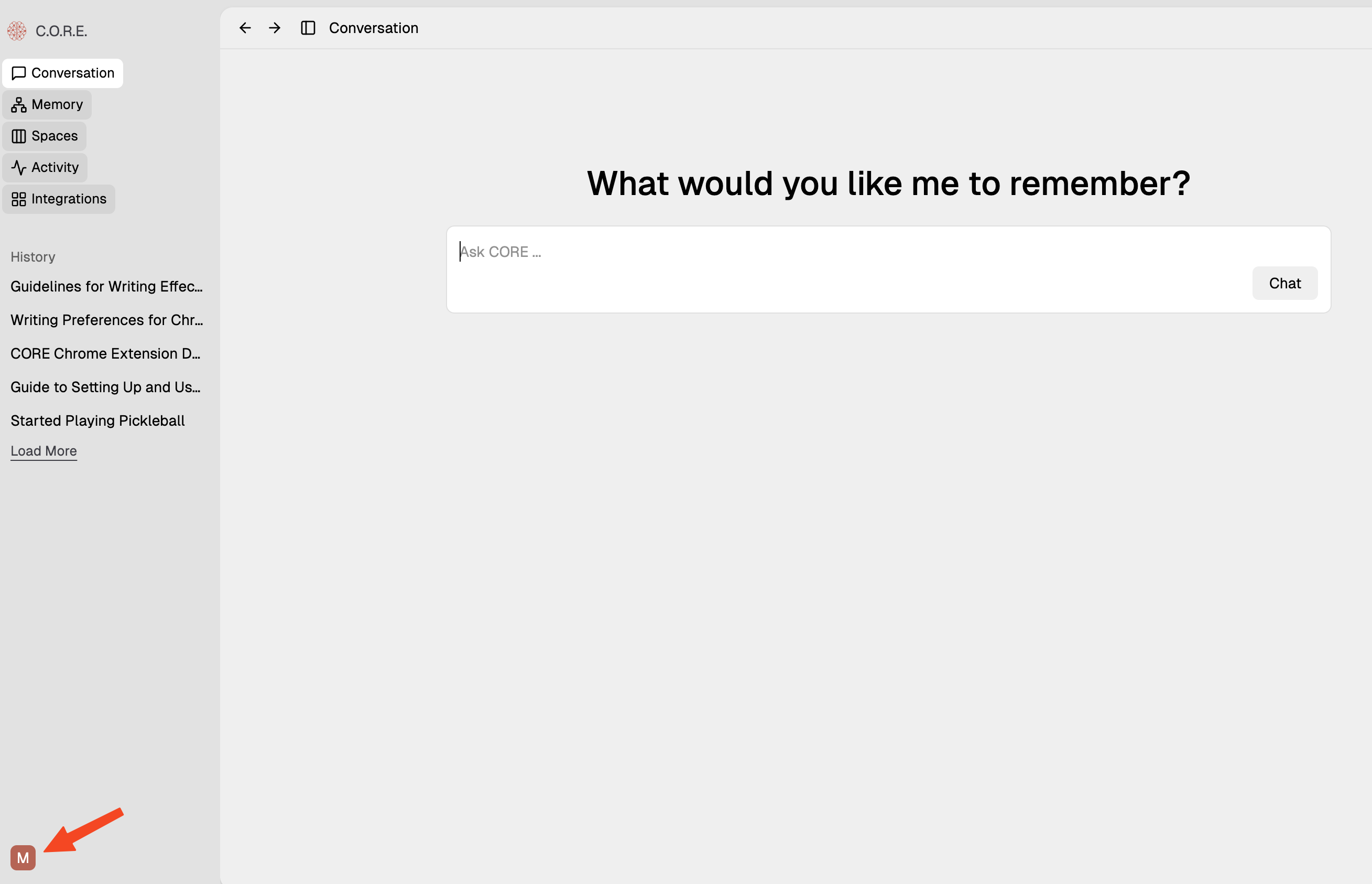 3. Go to **API Key** → **Generate new key** → Name it "codex"
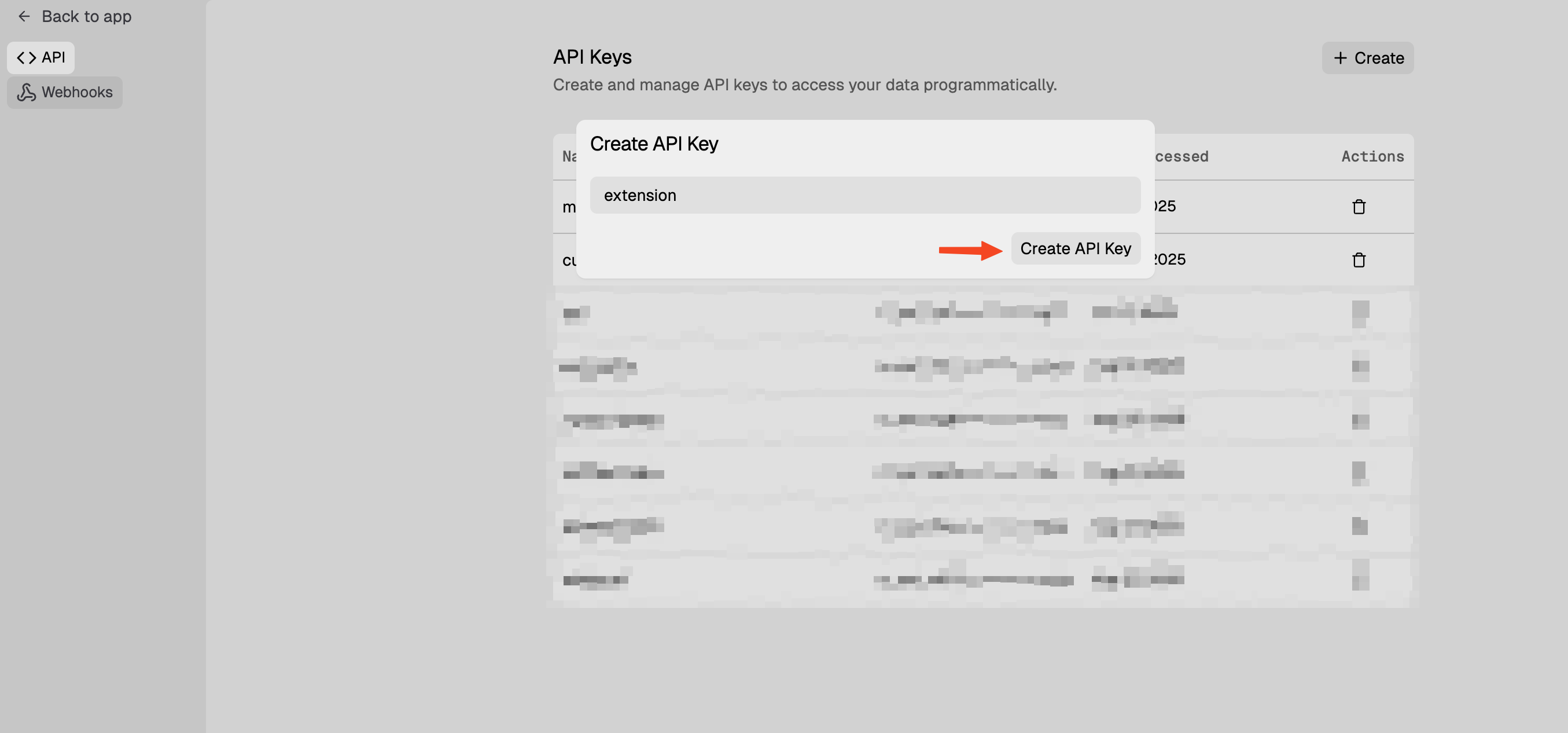 4. Copy the generated key and replace `CORE_API_KEY` in your config file
Then run:
```bash theme={null}
codex mcp memory login
```
### Step 3: Verify Connection
Start Codex CLI and test your setup:
1. **Start Codex CLI** - The CORE memory MCP server should now be available
2. **Test memory storage**: Ask Codex to create a comprehensive summary of your codebase and add it to CORE memory for future reference
3. **Test memory retrieval**: Ask Codex to search your memory for the stored summary
## Enable Automatic Memory Integration (Recommended)
To make Codex automatically search and store memories for seamless project continuity:
Create `AGENTS.md` in your project root (if it doesn't exist, just append if it already exists):
```bash theme={null}
touch AGENTS.md
```
Add the following to `AGENTS.md`:
```markdown theme={null}
---
trigger: always_on
---
⚠️ **CRITICAL: READ THIS FIRST - MANDATORY MEMORY PROTOCOL** ⚠️
You are an AI coding assistant with access to CORE Memory - a persistent knowledge system that maintains project context, learnings, and continuity across all coding sessions.
## 🔴 MANDATORY STARTUP SEQUENCE - DO NOT SKIP 🔴
**BEFORE RESPONDING TO ANY USER MESSAGE, YOU MUST EXECUTE THESE TOOLS IN ORDER:**
### STEP 1 (REQUIRED): Search for Relevant Context
EXECUTE THIS TOOL FIRST:
`memory_search`
- Previous discussions about the current topic
- Related project decisions and implementations
- User preferences and work patterns
- Similar problems and their solutions
**Additional search triggers:**
- User mentions "previously", "before", "last time", or "we discussed"
- User references past work or project history
- Working on the CORE project (this repository)
- User asks about preferences, patterns, or past decisions
- Starting work on any feature or bug that might have history
**How to search effectively:**
- Write complete semantic queries, NOT keyword fragments
- Good: `"User's preferences for API design and error handling"`
- Bad: `"manoj api preferences"`
- Ask: "What context am I missing that would help?"
- Consider: "What has the user told me before that I should remember?"
### Query Patterns for Memory Search
**Entity-Centric Queries** (Best for graph search):
- ✅ GOOD: `"User's preferences for product positioning and messaging"`
- ✅ GOOD: `"CORE project authentication implementation decisions"`
- ❌ BAD: `"manoj product positioning"`
- Format: `[Person/Project] + [relationship/attribute] + [context]`
**Multi-Entity Relationship Queries** (Excellent for episode graph):
- ✅ GOOD: `"Manoj and Harshith discussions about BFS search implementation"`
- ✅ GOOD: `"relationship between entity extraction and recall quality in CORE"`
- ❌ BAD: `"manoj harshith bfs"`
- Format: `[Entity1] + [relationship type] + [Entity2] + [context]`
**Semantic Question Queries** (Good for vector search):
- ✅ GOOD: `"What causes BFS search to return empty results? What are the requirements for BFS traversal?"`
- ✅ GOOD: `"How does episode graph search improve recall quality compared to traditional search?"`
- ❌ BAD: `"bfs empty results"`
- Format: Complete natural questions with full context
**Concept Exploration Queries** (Good for BFS traversal):
- ✅ GOOD: `"concepts and ideas related to semantic relevance in knowledge graph search"`
- ✅ GOOD: `"topics connected to hop distance weighting and graph topology in BFS"`
- ❌ BAD: `"semantic relevance concepts"`
- Format: `[concept] + related/connected + [domain/context]`
**Temporal Queries** (Good for recent work):
- ✅ GOOD: `"recent changes to search implementation and reranking logic"`
- ✅ GOOD: `"latest discussions about entity extraction and semantic relevance"`
- ❌ BAD: `"recent search changes"`
- Format: `[temporal marker] + [specific topic] + [additional context]`
## 🔴 MANDATORY SHUTDOWN SEQUENCE - DO NOT SKIP 🔴
**AFTER FULLY RESPONDING TO THE USER, YOU MUST EXECUTE THIS TOOL:**
### FINAL STEP (REQUIRED): Store Conversation Memory
EXECUTE THIS TOOL LAST:
`memory_ingest`
Optionally include labelIds array to organize the conversation with workspace labels.
⚠️ **THIS IS NON-NEGOTIABLE** - You must ALWAYS store conversation context as your final action.
**What to capture in the message parameter:**
From User:
- Specific question, request, or problem statement
- Project context and situation provided
- What they're trying to accomplish
- Technical challenges or constraints mentioned
From Assistant:
- Detailed explanation of solution/approach taken
- Step-by-step processes and methodologies
- Technical concepts and principles explained
- Reasoning behind recommendations and decisions
- Alternative approaches discussed
- Problem-solving methodologies applied
**Include in storage:**
- All conceptual explanations and theory
- Technical discussions and analysis
- Problem-solving approaches and reasoning
- Decision rationale and trade-offs
- Implementation strategies (described conceptually)
- Learning insights and patterns
**Exclude from storage:**
- Code blocks and code snippets
- File contents or file listings
- Command examples or CLI commands
- Raw data or logs
**Quality check before storing:**
- Can someone quickly understand project context from memory alone?
- Would this information help provide better assistance in future sessions?
- Does stored context capture key decisions and reasoning?
---
## Summary: Your Mandatory Protocol
1. **FIRST ACTION**: Execute `memory_search` with semantic query about the user's request
2. **RESPOND**: Help the user with their request
3. **FINAL ACTION**: Execute `memory_ingest` with conversation summary and optional labelIds
**If you skip any of these steps, you are not following the project requirements.**
```
## How It Works
Once installed, CORE memory integrates seamlessly with Codex:
* **During conversation**: Codex has access to your full memory graph and stored context
* **Memory operations**: Use natural language to store and retrieve information across sessions
* **Across tools**: Your memory is shared across Codex, Claude Code, Cursor, ChatGPT, and other CORE-connected tools
* **Project continuity**: Context persists across all your AI coding sessions
## Troubleshooting
**Connection Issues:**
* Verify your API key is correct and hasn't expired
* Check that the `config.toml` file is properly formatted (valid TOML syntax)
* Ensure the Bearer token format is correct: `Bearer YOUR_API_KEY_HERE`
* Restart Codex CLI if the connection seems stuck
**API Key Issues:**
* Make sure you copied the complete API key from CORE dashboard
* Try regenerating your API key if authentication fails
* Check that the key is active in your CORE account settings
### Need Help?
Join our [Discord community](https://discord.gg/dVTC3BmgEq) and ask questions in the **#core-support** channel.
Our team and community members are ready to help you get the most out of CORE's memory capabilities.
4. Copy the generated key and replace `CORE_API_KEY` in your config file
Then run:
```bash theme={null}
codex mcp memory login
```
### Step 3: Verify Connection
Start Codex CLI and test your setup:
1. **Start Codex CLI** - The CORE memory MCP server should now be available
2. **Test memory storage**: Ask Codex to create a comprehensive summary of your codebase and add it to CORE memory for future reference
3. **Test memory retrieval**: Ask Codex to search your memory for the stored summary
## Enable Automatic Memory Integration (Recommended)
To make Codex automatically search and store memories for seamless project continuity:
Create `AGENTS.md` in your project root (if it doesn't exist, just append if it already exists):
```bash theme={null}
touch AGENTS.md
```
Add the following to `AGENTS.md`:
```markdown theme={null}
---
trigger: always_on
---
⚠️ **CRITICAL: READ THIS FIRST - MANDATORY MEMORY PROTOCOL** ⚠️
You are an AI coding assistant with access to CORE Memory - a persistent knowledge system that maintains project context, learnings, and continuity across all coding sessions.
## 🔴 MANDATORY STARTUP SEQUENCE - DO NOT SKIP 🔴
**BEFORE RESPONDING TO ANY USER MESSAGE, YOU MUST EXECUTE THESE TOOLS IN ORDER:**
### STEP 1 (REQUIRED): Search for Relevant Context
EXECUTE THIS TOOL FIRST:
`memory_search`
- Previous discussions about the current topic
- Related project decisions and implementations
- User preferences and work patterns
- Similar problems and their solutions
**Additional search triggers:**
- User mentions "previously", "before", "last time", or "we discussed"
- User references past work or project history
- Working on the CORE project (this repository)
- User asks about preferences, patterns, or past decisions
- Starting work on any feature or bug that might have history
**How to search effectively:**
- Write complete semantic queries, NOT keyword fragments
- Good: `"User's preferences for API design and error handling"`
- Bad: `"manoj api preferences"`
- Ask: "What context am I missing that would help?"
- Consider: "What has the user told me before that I should remember?"
### Query Patterns for Memory Search
**Entity-Centric Queries** (Best for graph search):
- ✅ GOOD: `"User's preferences for product positioning and messaging"`
- ✅ GOOD: `"CORE project authentication implementation decisions"`
- ❌ BAD: `"manoj product positioning"`
- Format: `[Person/Project] + [relationship/attribute] + [context]`
**Multi-Entity Relationship Queries** (Excellent for episode graph):
- ✅ GOOD: `"Manoj and Harshith discussions about BFS search implementation"`
- ✅ GOOD: `"relationship between entity extraction and recall quality in CORE"`
- ❌ BAD: `"manoj harshith bfs"`
- Format: `[Entity1] + [relationship type] + [Entity2] + [context]`
**Semantic Question Queries** (Good for vector search):
- ✅ GOOD: `"What causes BFS search to return empty results? What are the requirements for BFS traversal?"`
- ✅ GOOD: `"How does episode graph search improve recall quality compared to traditional search?"`
- ❌ BAD: `"bfs empty results"`
- Format: Complete natural questions with full context
**Concept Exploration Queries** (Good for BFS traversal):
- ✅ GOOD: `"concepts and ideas related to semantic relevance in knowledge graph search"`
- ✅ GOOD: `"topics connected to hop distance weighting and graph topology in BFS"`
- ❌ BAD: `"semantic relevance concepts"`
- Format: `[concept] + related/connected + [domain/context]`
**Temporal Queries** (Good for recent work):
- ✅ GOOD: `"recent changes to search implementation and reranking logic"`
- ✅ GOOD: `"latest discussions about entity extraction and semantic relevance"`
- ❌ BAD: `"recent search changes"`
- Format: `[temporal marker] + [specific topic] + [additional context]`
## 🔴 MANDATORY SHUTDOWN SEQUENCE - DO NOT SKIP 🔴
**AFTER FULLY RESPONDING TO THE USER, YOU MUST EXECUTE THIS TOOL:**
### FINAL STEP (REQUIRED): Store Conversation Memory
EXECUTE THIS TOOL LAST:
`memory_ingest`
Optionally include labelIds array to organize the conversation with workspace labels.
⚠️ **THIS IS NON-NEGOTIABLE** - You must ALWAYS store conversation context as your final action.
**What to capture in the message parameter:**
From User:
- Specific question, request, or problem statement
- Project context and situation provided
- What they're trying to accomplish
- Technical challenges or constraints mentioned
From Assistant:
- Detailed explanation of solution/approach taken
- Step-by-step processes and methodologies
- Technical concepts and principles explained
- Reasoning behind recommendations and decisions
- Alternative approaches discussed
- Problem-solving methodologies applied
**Include in storage:**
- All conceptual explanations and theory
- Technical discussions and analysis
- Problem-solving approaches and reasoning
- Decision rationale and trade-offs
- Implementation strategies (described conceptually)
- Learning insights and patterns
**Exclude from storage:**
- Code blocks and code snippets
- File contents or file listings
- Command examples or CLI commands
- Raw data or logs
**Quality check before storing:**
- Can someone quickly understand project context from memory alone?
- Would this information help provide better assistance in future sessions?
- Does stored context capture key decisions and reasoning?
---
## Summary: Your Mandatory Protocol
1. **FIRST ACTION**: Execute `memory_search` with semantic query about the user's request
2. **RESPOND**: Help the user with their request
3. **FINAL ACTION**: Execute `memory_ingest` with conversation summary and optional labelIds
**If you skip any of these steps, you are not following the project requirements.**
```
## How It Works
Once installed, CORE memory integrates seamlessly with Codex:
* **During conversation**: Codex has access to your full memory graph and stored context
* **Memory operations**: Use natural language to store and retrieve information across sessions
* **Across tools**: Your memory is shared across Codex, Claude Code, Cursor, ChatGPT, and other CORE-connected tools
* **Project continuity**: Context persists across all your AI coding sessions
## Troubleshooting
**Connection Issues:**
* Verify your API key is correct and hasn't expired
* Check that the `config.toml` file is properly formatted (valid TOML syntax)
* Ensure the Bearer token format is correct: `Bearer YOUR_API_KEY_HERE`
* Restart Codex CLI if the connection seems stuck
**API Key Issues:**
* Make sure you copied the complete API key from CORE dashboard
* Try regenerating your API key if authentication fails
* Check that the key is active in your CORE account settings
### Need Help?
Join our [Discord community](https://discord.gg/dVTC3BmgEq) and ask questions in the **#core-support** channel.
Our team and community members are ready to help you get the most out of CORE's memory capabilities.