> ## Documentation Index
> Fetch the complete documentation index at: https://docs.getcore.me/llms.txt
> Use this file to discover all available pages before exploring further.
# Cursor
> Connect your Cursor Desktop app to CORE's memory system
 ### Prerequisites
* Cursor
* CORE account (sign up at [app.getcore.me](https://app.getcore.me))
### Step 1: Add CORE MCP in Cursor
1. Open Cursor Desktop app
2. Navigate to **Settings** → **Tools & Integrations** → Click **Add Custom MCP**
### Prerequisites
* Cursor
* CORE account (sign up at [app.getcore.me](https://app.getcore.me))
### Step 1: Add CORE MCP in Cursor
1. Open Cursor Desktop app
2. Navigate to **Settings** → **Tools & Integrations** → Click **Add Custom MCP**
 3. Enter the below into mcp.json file:
```
"core_memory": {
"url": "https://app.getcore.me/api/v1/mcp?source=Cursor"
}
```
3. Enter the below into mcp.json file:
```
"core_memory": {
"url": "https://app.getcore.me/api/v1/mcp?source=Cursor"
}
```
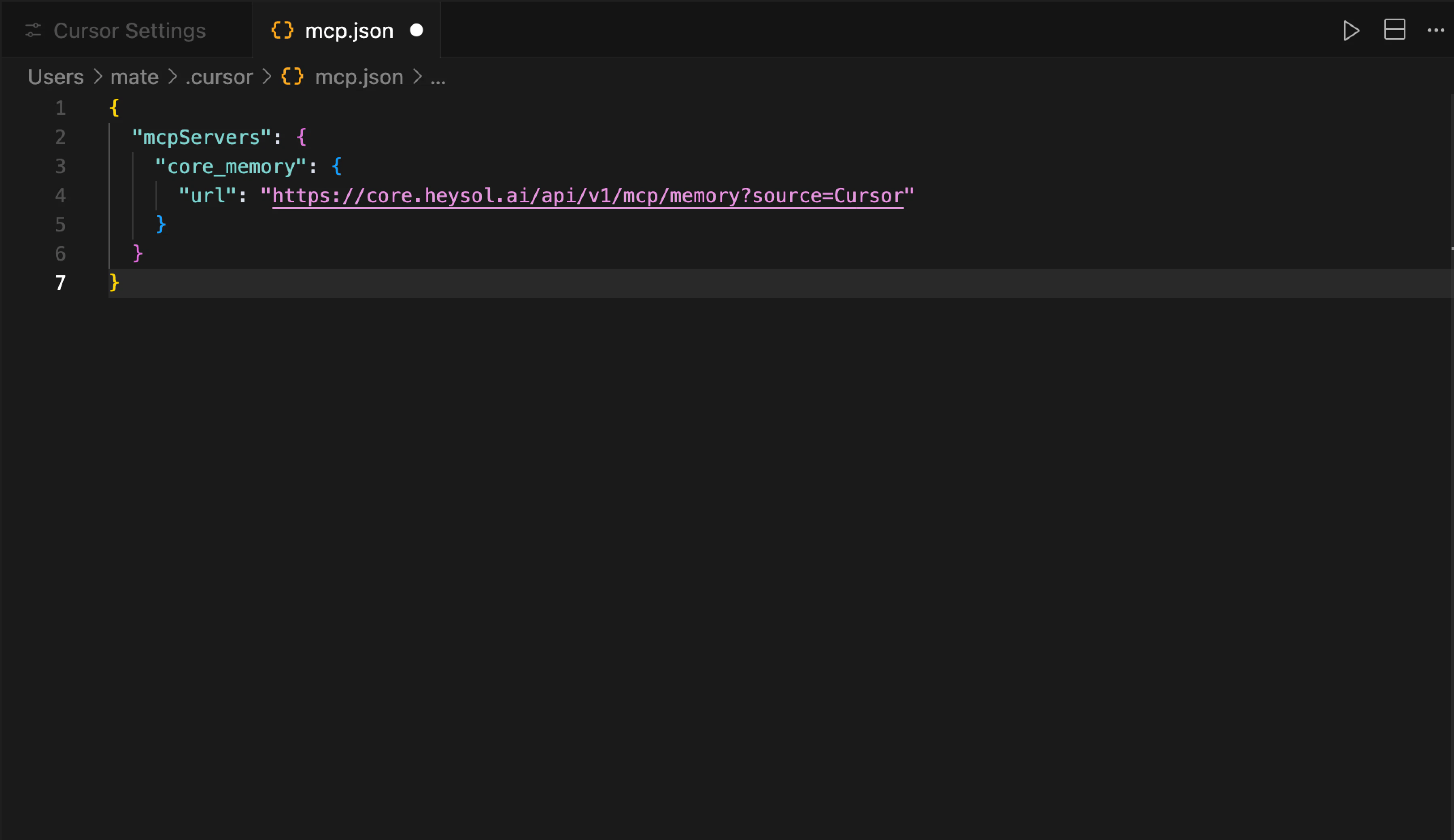 4. After saving mcp.json file, **core\_memory** MCP will appear in Tools & Integration.
### Step 2: Authenticate with CORE
1. Sign in to your CORE account (if not done already)
2. Click **Need Login** in core\_memory MCP tool
4. After saving mcp.json file, **core\_memory** MCP will appear in Tools & Integration.
### Step 2: Authenticate with CORE
1. Sign in to your CORE account (if not done already)
2. Click **Need Login** in core\_memory MCP tool
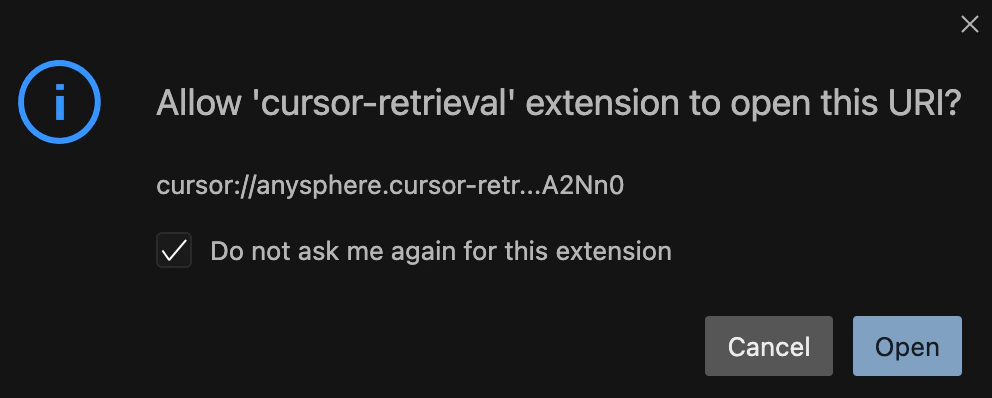
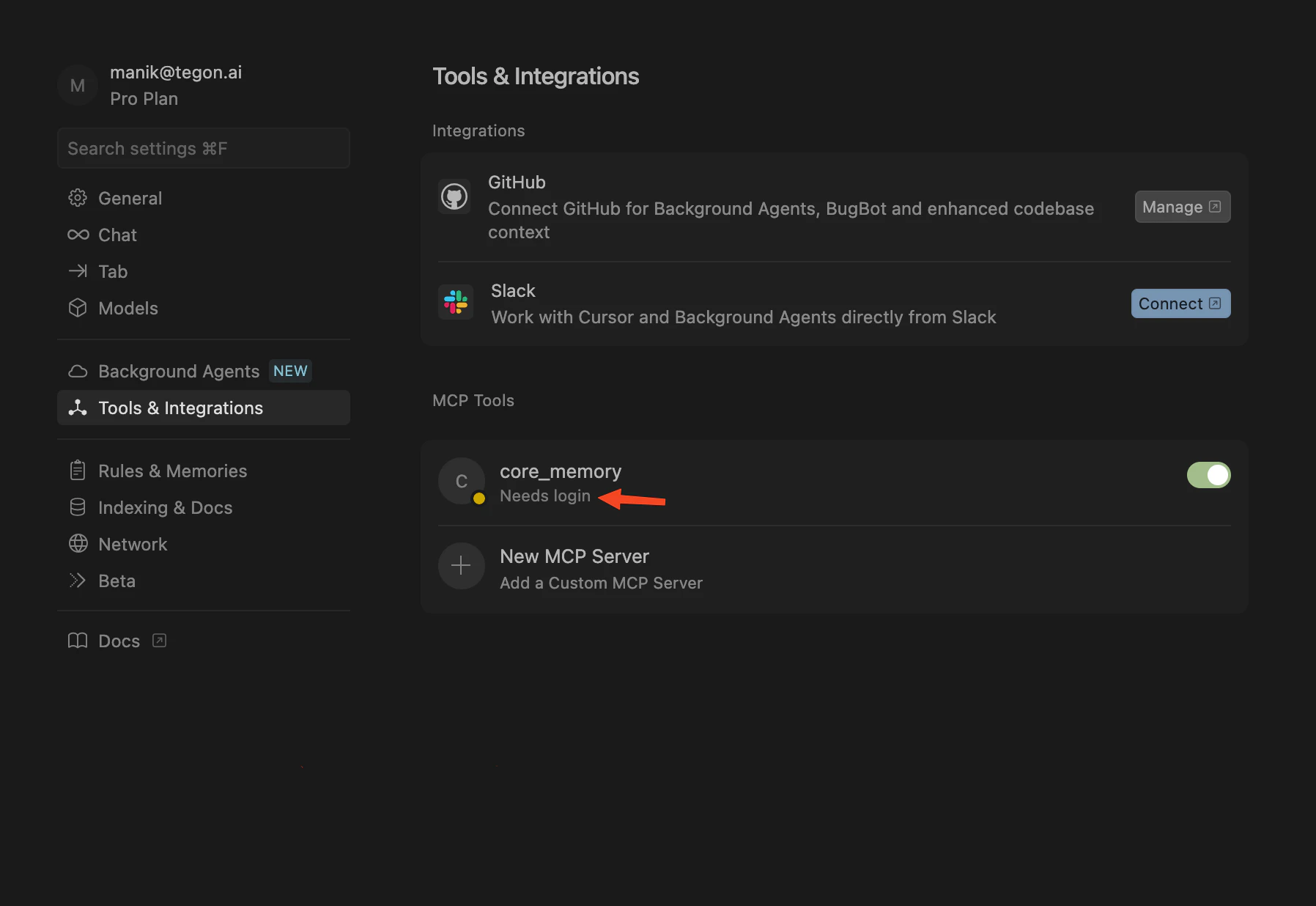 3. Cursor will prompt you to open a website for authentication. Click **Open**
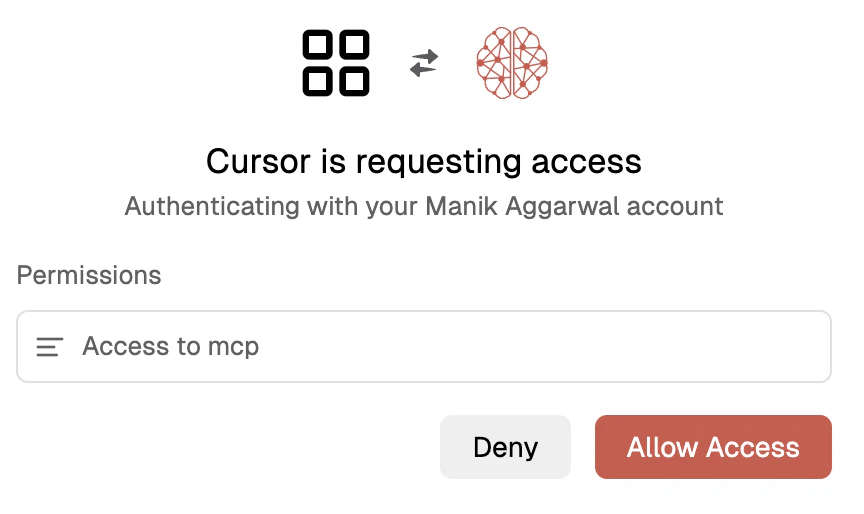
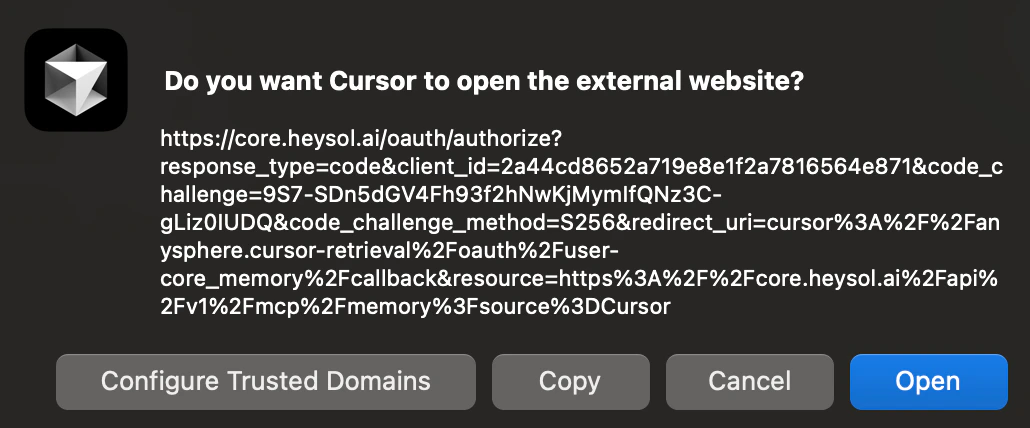 4. When the authentication window opens, Grant Cursor permission to access your CORE memory
 5. Close the authentication window and click **Open** to allow Cursor to access this URL.
 ### Step 3: Verify Connection
1. Go to **Tools & Integrations** in Cursor settings
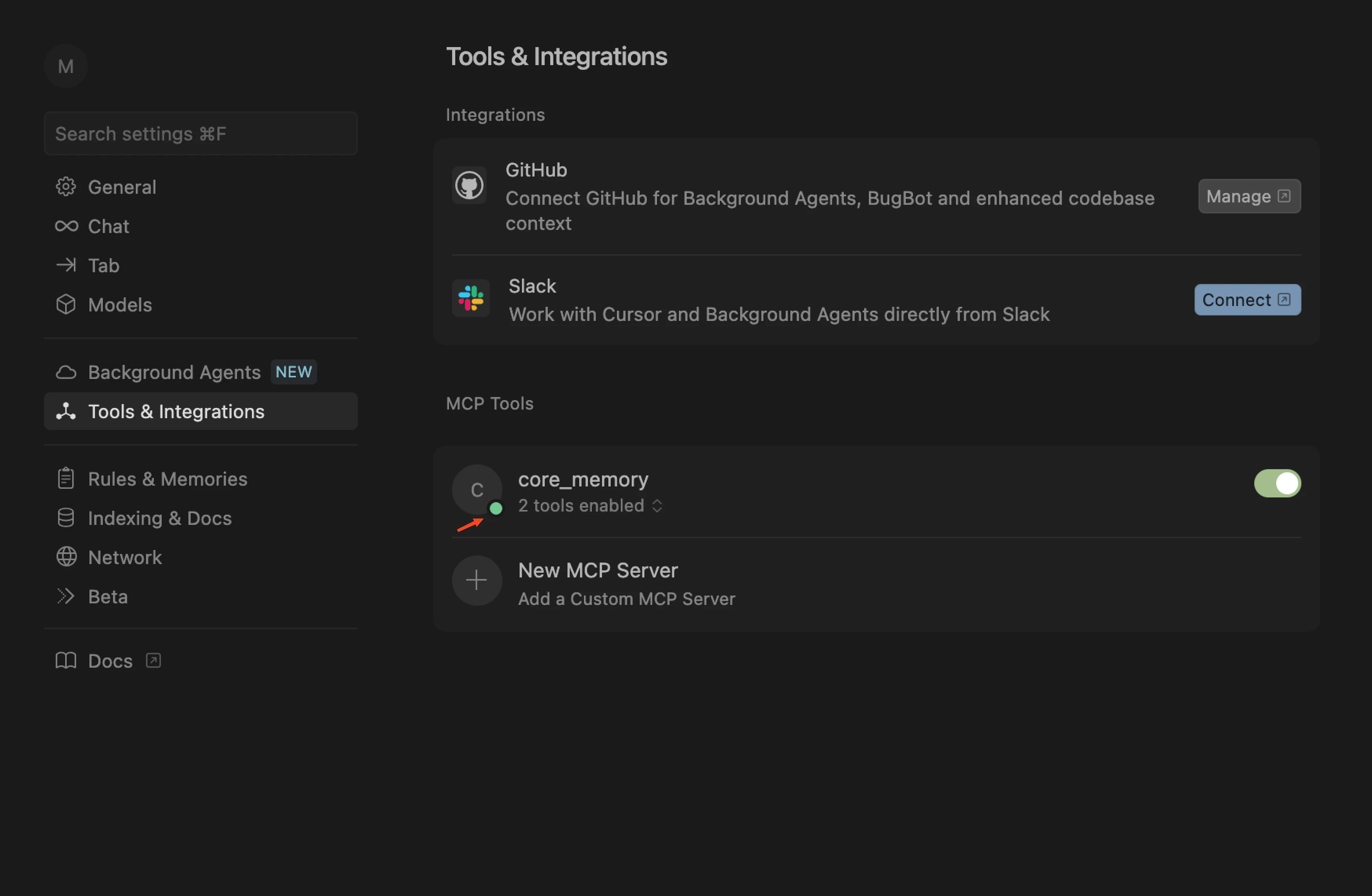
2. Confirm the core\_memory MCP shows as **Active** with green dot indicator
### Step 3: Verify Connection
1. Go to **Tools & Integrations** in Cursor settings
2. Confirm the core\_memory MCP shows as **Active** with green dot indicator
 ## Enable Automatic Memory Integration (Recommended)
### Using Cursor Project Rules
Use Cursor's native Rules & Memories feature:
1. Go to **Settings** → **Rules & Memories** → **Project Rules**
2. Click **+Add Rule**
3. Add the frontmatter and memory protocol from the [Memory Rules guide](/providers/memory-rules)
Use this frontmatter for Cursor:
```text theme={null}
---
description: Core Memory MCP Instructions
alwaysApply: true
---
```
Then paste the memory protocol content below it.
## What's Next?
With CORE connected to Cursor, your conversations will now:
* **Automatically save** important context to your CORE memory
* **Retrieve relevant** information from CORE memory
* **Maintain continuity** across multiple chat sessions
* **Share context** with other connected tools
Ready to test it? Ask Cursor about a project you've discussed before, or start a new conversation about something you'd like to remember for later.
## Troubleshooting
**Connection Issues:**
* Ensure you're core\_memory MCP tool is active with a green dot, if not toggle on and off for this server
* Check that your CORE account is active
## Need Help?
Join our [Discord community](https://discord.gg/dVTC3BmgEq) and ask questions in the **#core-support** channel.
Our team and community members are ready to help you get the most out of CORE's memory capabilities.
## Enable Automatic Memory Integration (Recommended)
### Using Cursor Project Rules
Use Cursor's native Rules & Memories feature:
1. Go to **Settings** → **Rules & Memories** → **Project Rules**
2. Click **+Add Rule**
3. Add the frontmatter and memory protocol from the [Memory Rules guide](/providers/memory-rules)
Use this frontmatter for Cursor:
```text theme={null}
---
description: Core Memory MCP Instructions
alwaysApply: true
---
```
Then paste the memory protocol content below it.
## What's Next?
With CORE connected to Cursor, your conversations will now:
* **Automatically save** important context to your CORE memory
* **Retrieve relevant** information from CORE memory
* **Maintain continuity** across multiple chat sessions
* **Share context** with other connected tools
Ready to test it? Ask Cursor about a project you've discussed before, or start a new conversation about something you'd like to remember for later.
## Troubleshooting
**Connection Issues:**
* Ensure you're core\_memory MCP tool is active with a green dot, if not toggle on and off for this server
* Check that your CORE account is active
## Need Help?
Join our [Discord community](https://discord.gg/dVTC3BmgEq) and ask questions in the **#core-support** channel.
Our team and community members are ready to help you get the most out of CORE's memory capabilities.