

Prerequisites
- Cursor
- CORE account (sign up at app.getcore.me)
Step 1: Add CORE MCP in Cursor
- Open Cursor Desktop app
- Navigate to Settings → Tools & Integrations → Click Add Custom MCP

- Enter the below into mcp.json file:
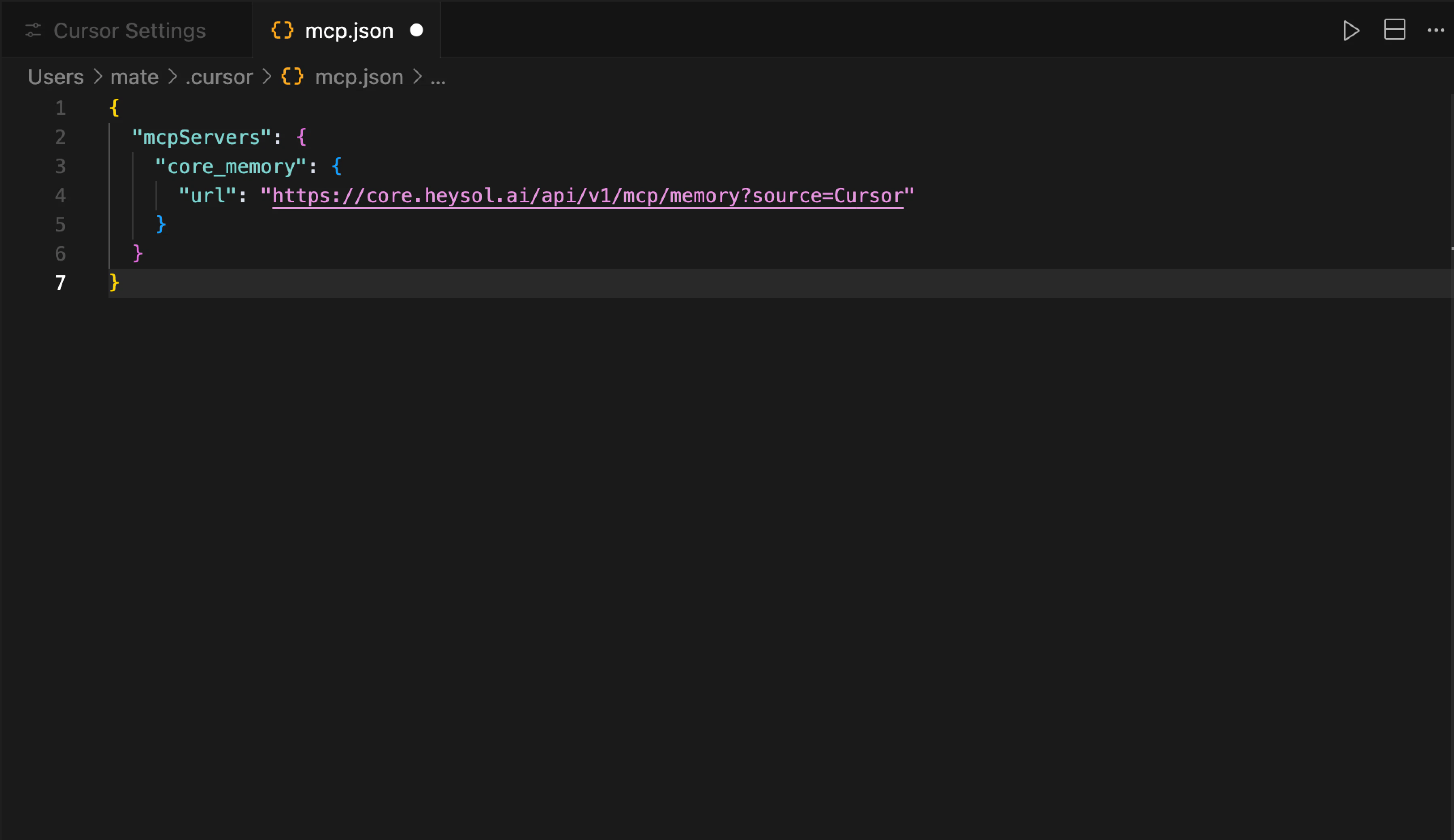
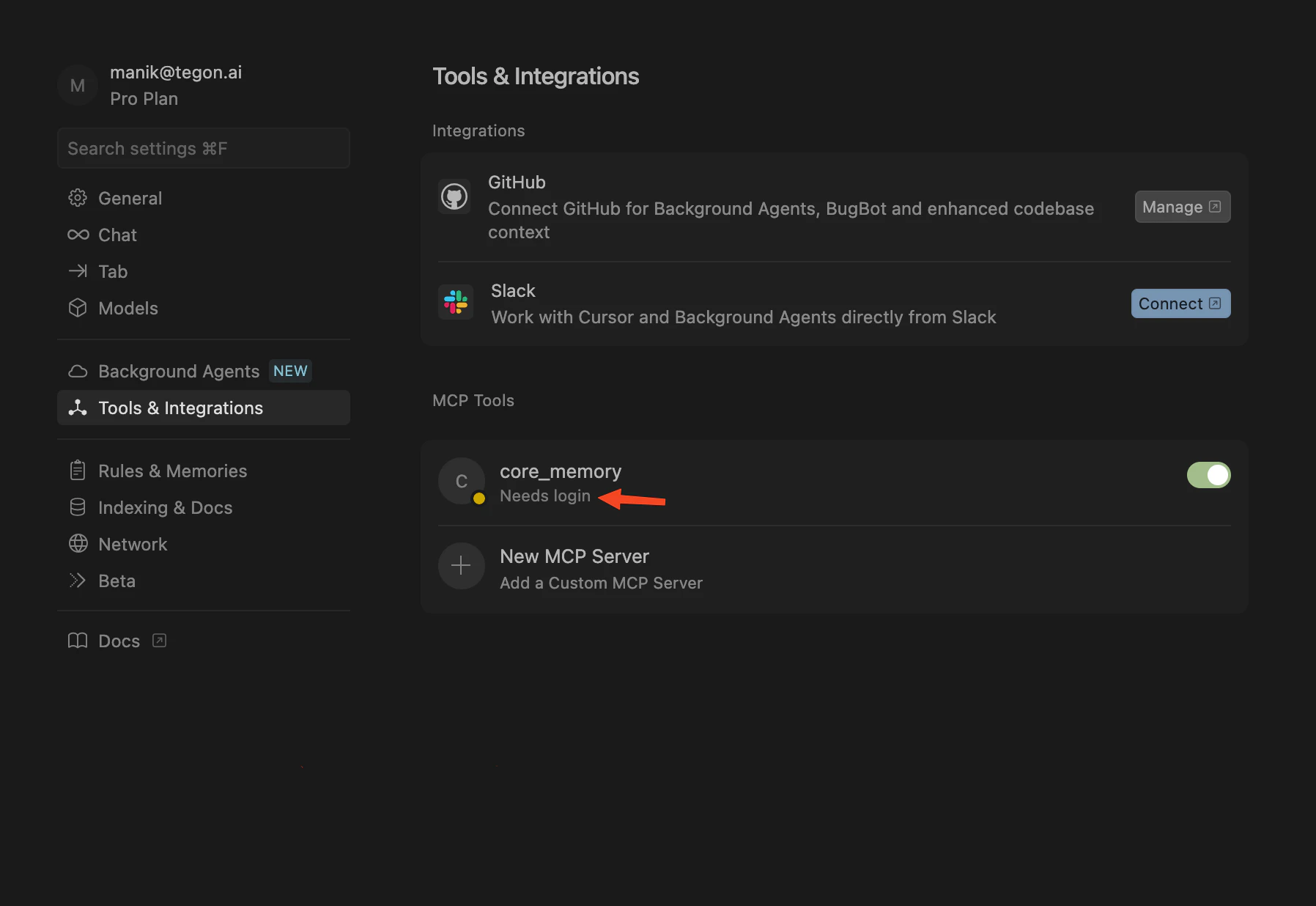
- After saving mcp.json file, core_memory MCP will appear in Tools & Integration.
Step 2: Authenticate with CORE
- Sign in to your CORE account (if not done already)
- Click Need Login in core_memory MCP tool
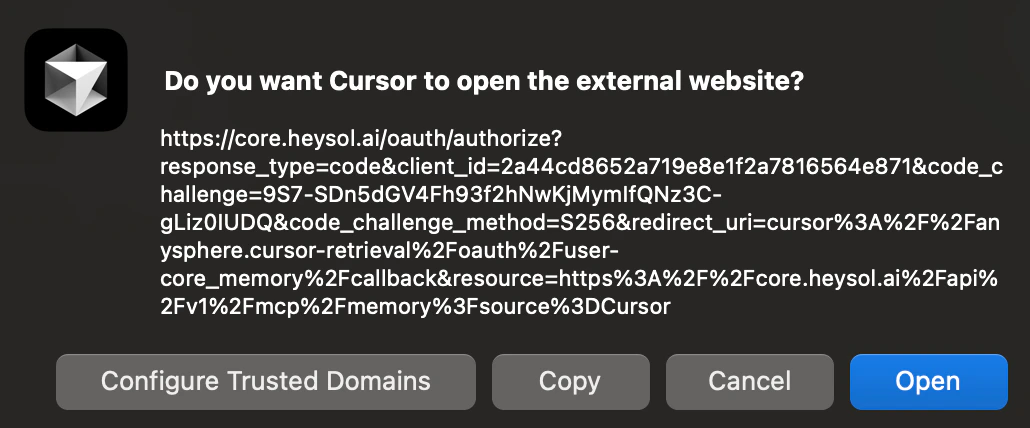
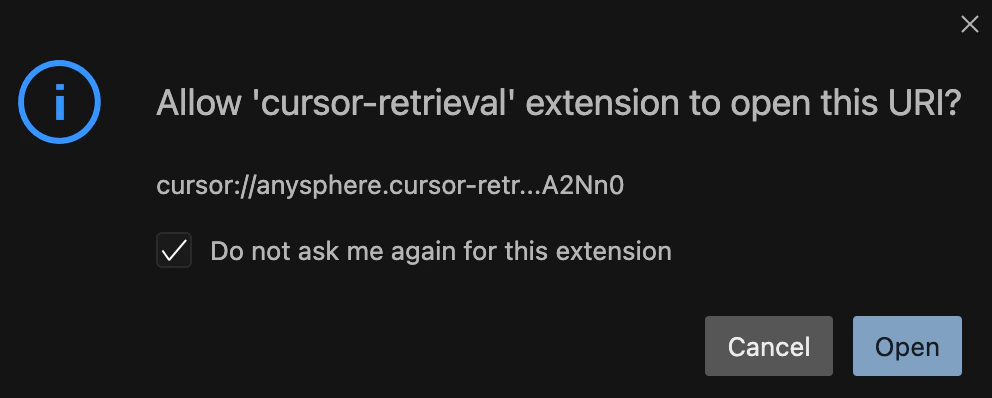
- Cursor will prompt you to open a website for authentication. Click Open
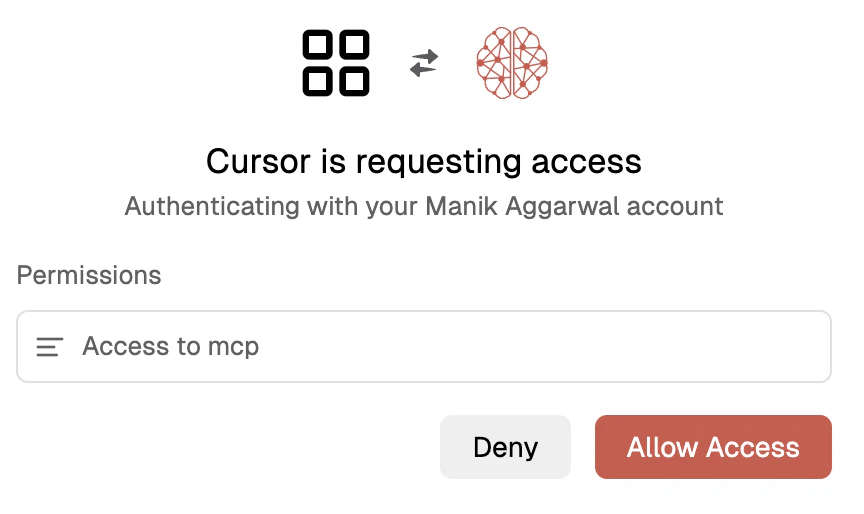
- When the authentication window opens, Grant Cursor permission to access your CORE memory
- Close the authentication window and click Open to allow Cursor to access this URL.
Step 3: Verify Connection
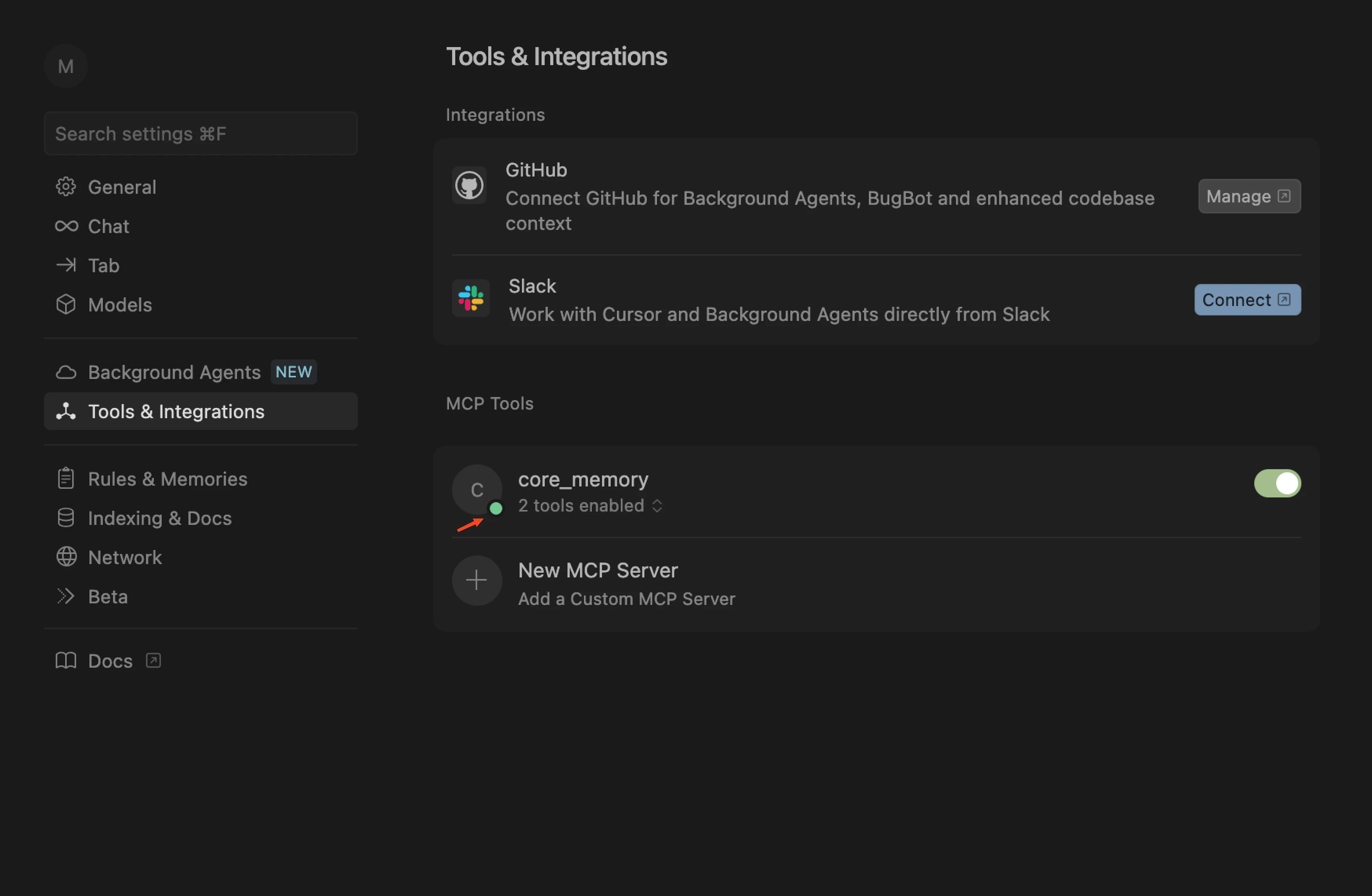
- Go to Tools & Integrations in Cursor settings
- Confirm the core_memory MCP shows as Active with green dot indicator
Enable Automatic Memory Integration (Recommended)
Using Cursor Project Rules
Use Cursor’s native Rules & Memories feature:- Go to Settings → Rules & Memories → Project Rules
- Click +Add Rule
- Add the frontmatter and memory protocol from the Memory Rules guide
What’s Next?
With CORE connected to Cursor, your conversations will now:- Automatically save important context to your CORE memory
- Retrieve relevant information from CORE memory
- Maintain continuity across multiple chat sessions
- Share context with other connected tools
Troubleshooting
Connection Issues:- Ensure you’re core_memory MCP tool is active with a green dot, if not toggle on and off for this server
- Check that your CORE account is active